This guide will walk you through how to configure GeyserMC on Paper with playit.gg
You can download GeyserMC here:
- GeyserMC - [geysermc.org]
Optional: Floodgate Floodgate allows Bedrock clients to connect to Java servers without the need for a Java Edition account. Without this, players will still be able to join, but they will need to authenticate with a Java Edition account.
- Floodgate (Bedrock Authentication) - [geysermc.org]
Server
The server we used for this guide is Paper 26.1.2, and you can download it here. [papermc.io] The setup process is the same across all server platforms. See How to setup a Minecraft Java Server
Config
server.propertiesBy default,
enforce-secure-profileis set totrue. Set this tofalseto allow Bedrock clients to chat.
Installation
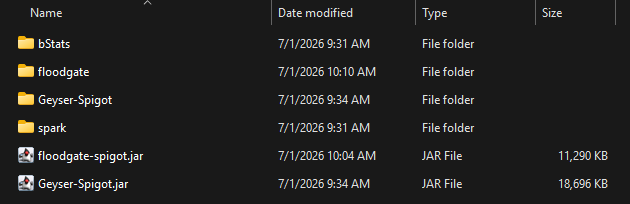
All files downloaded will be a .jar file. For Paper, these files should be placed in ./plugins folder.
Starting the server
Run your server’s JAR file. We need to start the server in order for the server plugins to generate their config files for you. You can either open it using a batch file, or by running it inside of a command line.
java -Xmx4G -jar paper-26.1.2-72.jar nogui
pause
Creating a tunnel
This server uses game presets, which means that all users will be able to create this.
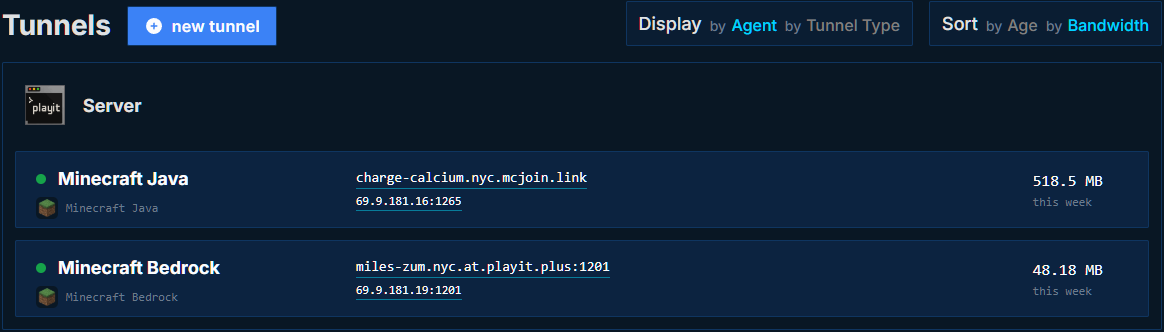
You will create two tunnels. Minecraft Java, and Minecraft Bedrock. Follow the instructions shown on screen and create the tunnels. Your tunnel list should look something like this:
Modifying a tunnel
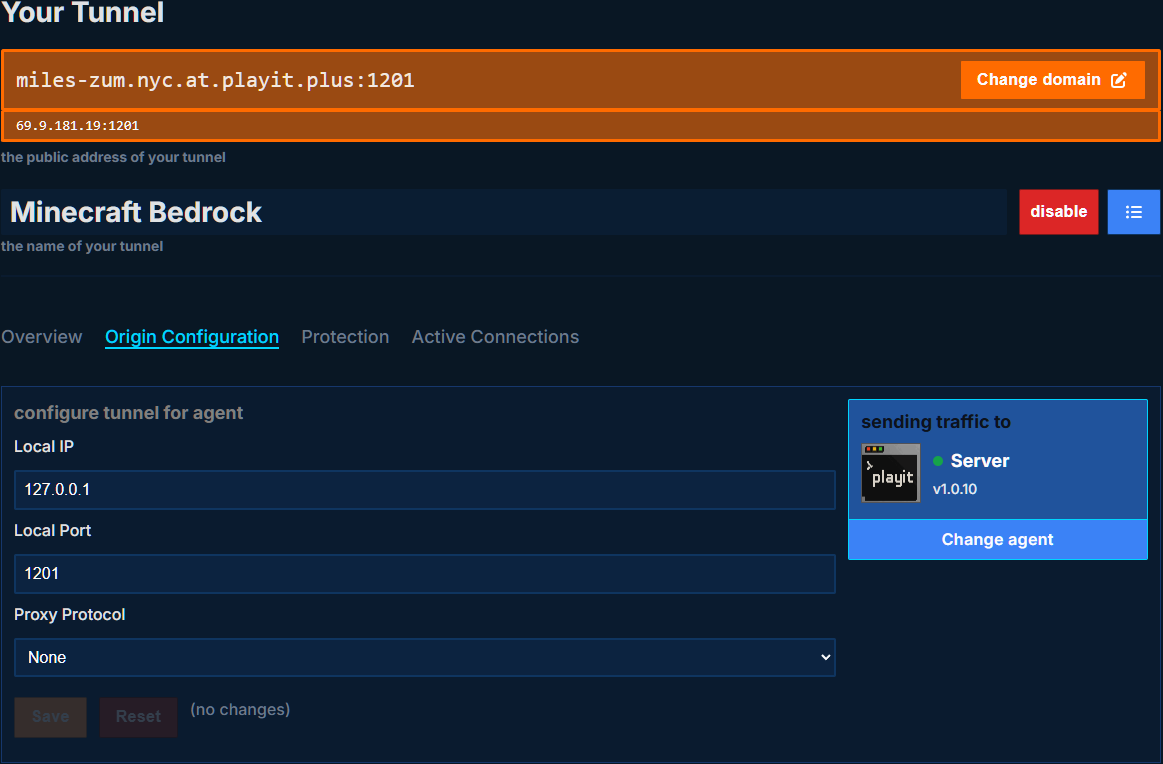
We’ll need to change the origin configuration on the Minecraft Bedrock tunnel. Copy the port of your tunnel, and set the local port to this value.
For example, 1201. Your port will be different.
Basic Geyser Config
Open and edit ./plugins/Geyser-Fabric/config.yml. We need to change the port to the one provided by playit. Since our port is 1201, we need to tell Geyser to listen on this port.
# Network settings for the Bedrock listener
bedrock:
 # The IP address that Geyser will bind on to listen for incoming Bedrock connections.
 # Generally, you should only change this if you want to limit what IPs can connect to your server.
 address: 0.0.0.0

 # The port that will Geyser will listen on for incoming Bedrock connections.
 # Since Minecraft: Bedrock Edition uses UDP, this port must allow UDP traffic.
 port: 1201

 # Some hosting services change your Java port everytime you start the server and require the same port to be used for Bedrock.
 # This option makes the Bedrock port the same as the Java port every time you start the server.
 clone-remote-port: false
On a successful install, your logs should look like this:
[00:00:00] [Server thread/INFO]: Took 15ms to boot Floodgate
[00:00:00] [Server thread/INFO]: ******************************************
[00:00:00] [Server thread/INFO]:
[00:00:00] [Server thread/INFO]: Loading Geyser version 2.10.1-b1177 (git-master-232f873)
[00:00:00] [Server thread/INFO]:
[00:00:00] [Server thread/INFO]: ******************************************
[00:00:00] [GeyserServer-3-1/INFO]: Started Geyser on UDP port 1201
[00:00:00] [Server thread/INFO]: Done (1.250s)! Run /geyser help for help!
Connecting to the server is the same as usual. Share playit’s IP address with people to connect!